What Does CRA Tax Owing Mean?
After you file your tax return, the Canada Revenue Agency processes it and sends you a Notice of Assessment (NOA). Most Canadians now receive this electronically through CRA My Account, usually within a few days of e-filing.
Your Notice of Assessment confirms:
- Whether you owe money or receive a refund
- Your final assessed income
- Any adjustments CRA made to your return
- Your payment due date
- Instalment reminders (if applicable)
If your NOA shows a balance owing, that amount must be paid by the CRA payment deadline to avoid interest charges.
One mistake I see constantly is people assuming they have a “grace period” after filing. Unfortunately, CRA interest starts accumulating immediately after the payment deadline passes and it compounds daily.
What Happens If You Cannot Pay CRA in Full?
Even if you cannot pay the full balance today, always file your tax return on time.
The late filing penalty is usually far worse than the interest itself. CRA can charge:
- 5% of your unpaid balance immediately
- Plus 1% per month for up to 12 months
Filing on time stops the late filing penalty. Paying the balance reduces the interest.
Before You Pay: What You Need Ready
Before you start any online payment, grab these details so you don’t have to stop mid‑process:
- Your Notice of Assessment (or CRA My Account balance)
- The exact amount owing on your tax account
- Your Social Insurance Number (SIN) if you’re paying personal income tax
- Your Business Number (BN) if you’re paying for a business, GST/HST, or corporation
- Your bank login (for online banking), debit card, or CRA My Account login
- The correct tax period or tax year (e.g., 2025 vs. 2026)
For most individuals, the payment category is T1 income tax amount owing. If you’re paying for a business or corporation, the payment type may be T2 corporate income tax or GST/HST owing, depending on what shows on your notice.
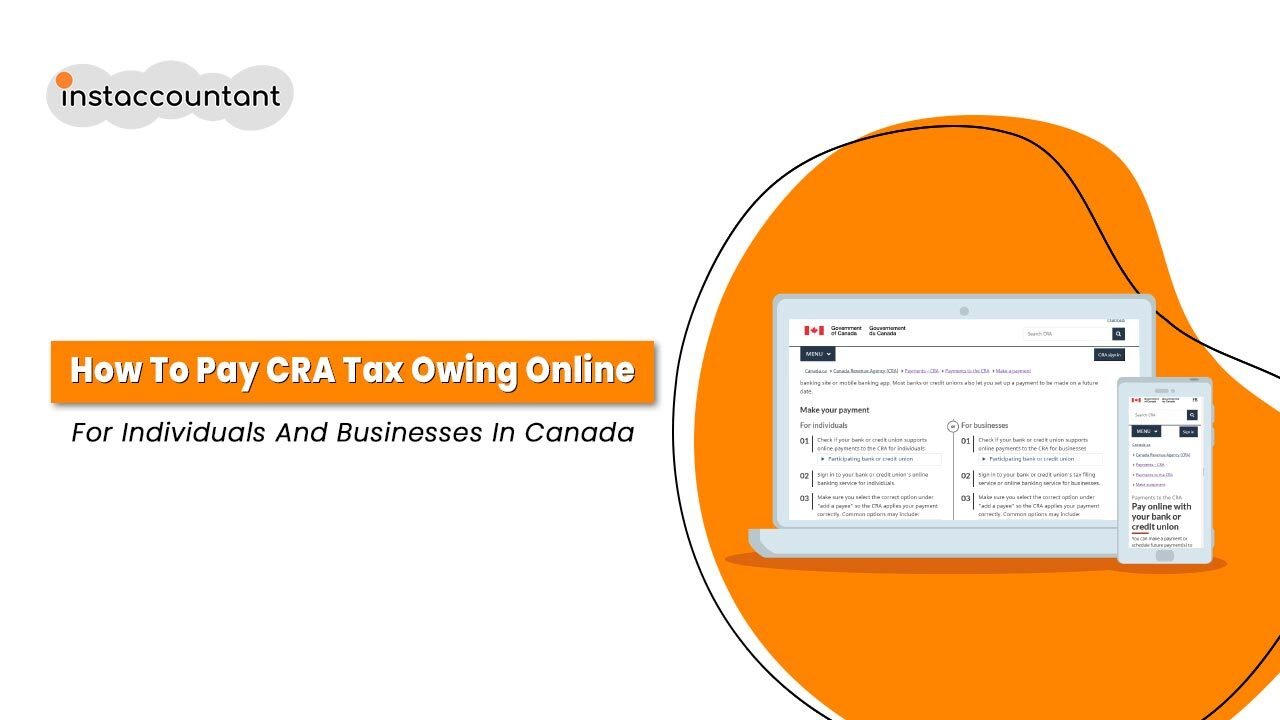
3 Ways to Pay CRA Tax Owing Online
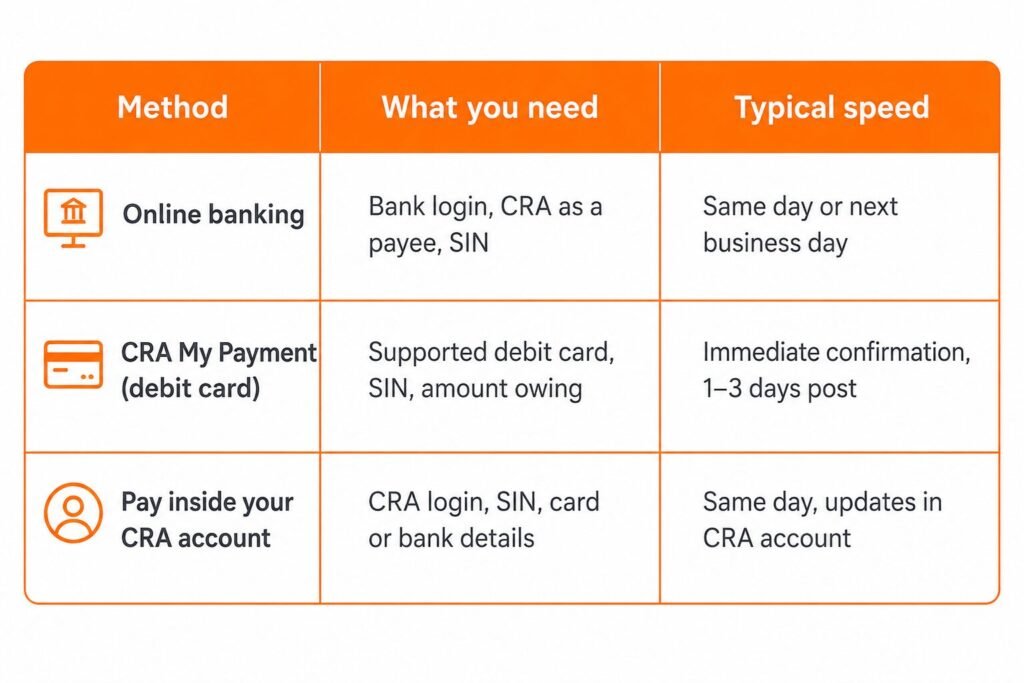
Method 1: How to Pay CRA Tax Owing via Online Banking
This is the method I recommend to most clients because it is fast, secure and already integrated into your existing bank account. It supports all major Canadian banks (RBC, TD, Scotiabank, BMO, CIBC, Tangerine, etc.).
Step-by-Step Guide:
- Sign in to your bank’s online banking website or mobile app.
- Navigate to the “Bill Payments” or “Add a Payee” section.
- Search for the CRA payee. Note: The list can be long.
- For an individual tax return: Choose “CRA (Revenue) – T1 Income Tax” (ensure you select the correct tax year!).
- For Corporate Tax: Choose “CRA (Revenue) – T2 Corporation Income Tax.”
- Enter your Account Number:
- For personal tax: Enter your 9-digit SIN.
- For corporate tax: Enter your Business Number (BN).
- Do not include spaces or dashes.
- Enter the amount shown on your Notice of Assessment.
- Review payee, amount, tax year and account number. Then submit the payment.
- Save the transaction ID, payment reference or a screenshot of the confirmation page.
Always set CRA as a permanent payee in your online banking. That way, if you owe in future years, you only need to update the amount and date. Always pay at least 3 business days before the deadline to avoid late penalties.
Method 2: Pay With CRA My Payment Using a Debit Card
If you don’t want to add the CRA as a payee in your bank app, CRA My Payment is a clean, direct option. This is CRA’s own online payment portal that lets you pay using your bank‑linked debit card (not a standard credit card).
Step-by-Step Guide:
- Visit the official CRA My Payment page.
- Read and accept the terms of use.
- Select your payment type. For individuals, select “Income Tax (T1).”
- Choose the correct tax year (e.g., 2025 or 2026) for the return you are paying.
- Enter your Social Insurance Number (SIN) and the payment amount.
- Proceed to payment. You will be redirected to your bank’s secure login page to authorize the debit via Interac Online.
- Submit the payment and save the confirmation page or take a screenshot.
If your payment deadline is today, CRA My Payment is often safer than online banking because it processes faster and gives you an immediate confirmation number directly from the CRA payment system. Standard credit cards (like a standard Visa or Mastercard) are not accepted for this service.
Method 3: How to Pay Through Your CRA My Account
If you already have a CRA My Account login, this is often the easiest and most accurate method. Your assessed balance is already visible in your CRA profile, and the system pre‑fills a lot of the details for you. This reduces the risk of choosing the wrong tax year or payment type.
Step-by-Step Guide:
- Log in to CRA My Account (using your GCKey or Sign-In Partner).
- On the dashboard, look for the “Accounts and Payments” tab.
- Click on “Make a payment.”
- Select the specific tax type (Income Tax, GST/HST, etc.).
- You will be redirected to a third-party payment provider (like PaySimply or Acuity) or you can set up a Pre-Authorized Debit (PAD).
- If using the “Pay Now” button, enter your banking details and confirm the amount.
- Screenshot the final confirmation screen.
CRA is encouraging more taxpayers to set up pre‑authorized debit (PAP) agreements. If you expect to owe in future years (e.g., as a self‑employed, incorporated contractor), using PAP lets you schedule payments in advance so you don’t miss deadlines. This is especially helpful for those with fluctuating income who want to avoid last‑minute CRA interest accrual.
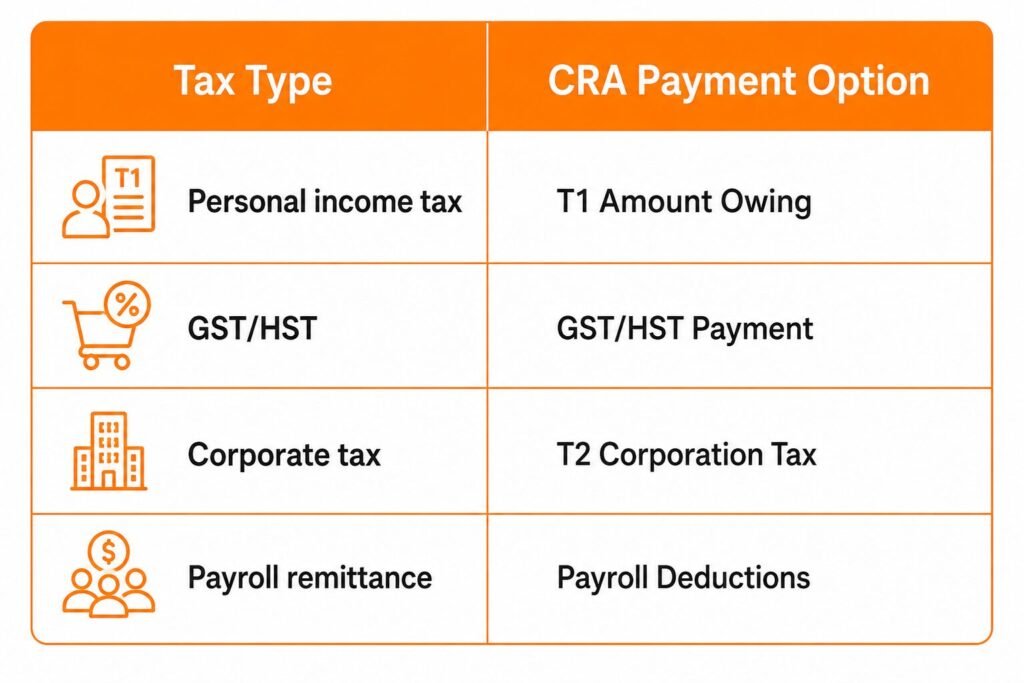
How to Pay GST/HST Owing to CRA Online
Paying GST/HST online is very similar to paying income tax, but the payee name is where many business owners make mistakes. I often see clients accidentally send GST/HST payments to their income tax account, which leads to confusion and unnecessary CRA follow ups.
- Log in to your online banking.
- Go to “Add a Payee.”
- Search for “CRA (Revenue) – GST/HST (GST/HST Remittance).”
- For the account number, enter your Business Number (BN). This is a 15-digit number (your 9-digit registration number followed by “RT0001”).
- Enter the amount found on your GST/HST return and submit.
Business owners often use their Social Insurance Number by mistake instead of their Business Number. That small error can delay processing for weeks and may trigger CRA collection notices, even though the payment has already left your bank account.
How to Manage CRA Quarterly Tax Instalments
If you are a gig worker, freelancer, or small business owner, you might receive a reminder from the CRA about tax instalments.
- If you owed more than $3,000 in taxes for the current year or in either of the two previous years, the CRA expects you to pay your taxes in quarterly instalments next year.
- The CRA calculates instalments based on your prior year’s tax bill. If your income fluctuates (common in freelancing), your instalments might be too high or too low.
You can pay these instalments easily using any of the three methods above. In online banking, simply add “CRA (Revenue) – Tax Instalments” as a payee. This helps you manage cash flow so you aren’t hit with a massive, unaffordable lump sum at tax time.
Common Mistakes to Avoid When Paying CRA
I see these errors frequently in my practice and they can delay your payment or cause unnecessary stress:
- Selecting the Wrong Year: One of the most frequent errors is selecting the current tax year (e.g., 2025) when you actually owe for a previous year (e.g., 2023). Always double-check the tax year in your bank app or on the payment portal.
- Incorrect Account Numbers: For personal taxes, use your SIN. For businesses, use your Business Number (BN). Typos here can delay the posting of your payment by weeks. Always double-check the numbers before hitting send.
- Filing vs. Paying Deadlines: For most individuals, the deadline to file and pay is April 30. However, if you are self-employed, your filing deadline is June 15, buy any money you owe was still due by April 30. If you wait until June to pay, you owe two months of interest.
- Losing the Receipts: Online banking is convenient, but paper records are king. If the CRA system glitches and says you didn’t pay, your bank app transaction history isn’t always enough. Download the PDF receipt or take a screenshot of the confirmation screen immediately.
- Ignoring GST/HST or self‑employment balances: Business owners and self‑employed contractors sometimes focus only on T1 personal tax and forget GST/HST or T2 corporate tax. Those balances can also accrue interest and can be audited separately.
Can You Make a Partial Payment to CRA?
Yes. CRA allows partial payments through most of its online methods, including online banking, CRA My Payment and CRA My Account. If you can’t afford to clear the full balance in one go, you can still send a partial amount to reduce the outstanding debt and interest.
However, keep in mind:
- Any unpaid amount remains on your account and continues to accrue interest until it’s settled.
- If you’re under a payment arrangement or have contacted CRA, follow their instructions carefully.
- If you’re self‑employed and registering for GST/HST, partial payments may not relieve you of remittance obligations.
Final Checklist for Paying Your Taxes
Before you finish, ensure you have completed these steps:
- Verified the exact amount on your Notice of Assessment.
- Selected the correct payee (Income Tax vs. GST/HST).
- Double-checked the tax year (e.g., 2023 vs. 2024).
- Saved your confirmation number or screenshot for your records.
Paying the government does not have to be complicated. By using the online methods outlined above, you can ensure your tax owing is settled quickly and securely. As a tax professional, my top recommendation is to always pay via a method that gives you a confirmation number and if you ever disagree with your balance, contact the CRA immediately rather than ignoring the bill.